Clearing the cache of a web browser can fix issues with pages missing information, or not providing needed permissions.
- In Microsoft Edge or Google Chrome press "Ctrl + H" to open the history interface.
- In Edge click the three dots at the top of the history pane.
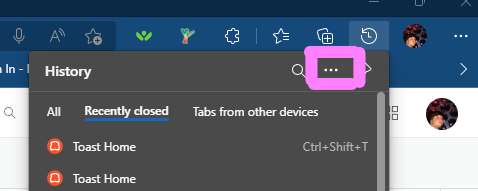
- Click "Clear browsing data".
- Configure the below two settings
Time range to All time.
The only box you want checked is Cached images and files. - In Edge click Clear now, in Chrome click Clear data.